---
title: Advanced, AI-powered document ingestion engine
description: Appulate through our 20 years of leadership on InsurTech has broken through the ACORD ceiling and made it possible to extract data from any supplemental form or quote application — no matter the format or quality.
---
[Skip to content](https://help.appulate.com/en/knowledge/advanced-ai-powered-document-ingestion-engine-1#main-content)
English
Show submenu for translations
![appulatelogo-1.svg\]](https://help.appulate.com/hubfs/appulatelogo-1.svg)
- [Appulate](https://appulate.com/?browse)
Open main navigation
Close main navigation
- [Appulate](https://appulate.com/?browse)
- English
Show submenu for translations
- [appulate.com](https://appulate.com/)
[appulate.com](https://appulate.com/)
Get help from Appulate team
- There are no suggestions because the search field is empty.
1. [Help](https://help.appulate.com/en/knowledge?hsLang=en)
2. [New features](https://help.appulate.com/en/knowledge/new-features?hsLang=en)
# Advanced, AI-powered document ingestion engine
## Appulate through our 20 years of leadership on InsurTech has broken through the ACORD ceiling and made it possible to extract data from any supplemental form or quote application — no matter the format or quality.
This article provides information on using AI automated data reader and uploader in Appulate.
- [Key benefits of Forms AI](https://help.appulate.com/en/knowledge/advanced-ai-powered-document-ingestion-engine-1#benefits)
- [Supported insurance documents](https://help.appulate.com/en/knowledge/advanced-ai-powered-document-ingestion-engine-1#documents)
- [Supported lines of insurance](https://help.appulate.com/en/knowledge/advanced-ai-powered-document-ingestion-engine-1#lines)
- [Ways to ingest data for processing](https://help.appulate.com/en/knowledge/advanced-ai-powered-document-ingestion-engine-1#methods)
- [User flows](https://help.appulate.com/en/knowledge/advanced-ai-powered-document-ingestion-engine-1#flows)
### Key benefits of Forms AI:
- **Beyond ACORD**: Process handwritten or poor-quality forms, supplemental applications, custom questionnaires, email texts and more, with industry-leading accuracy.
- **Out-of-the-box performance**: Achieves ~80% accuracy on day one — and improves daily as the AI learns.
- **Faster underwriting**: Extracts and standardizes data for quicker submissions and cleaner intake, reducing time spent on manual entry.
- **Plug-and-play integration**: Easily implemented into existing systems without additional training or tech lift.
- **Adaptable and scalable**: Works with all lines of business and custom programs; enables rapid implementation with fewer resources.
- **Secure by default**: Your data stays protected with encryption, no retention, and strict access controls.
**USP**: Forms AI reduces time and friction while improving data quality — giving agents more time to quote and gives markets more confidence in submissions.
### Insurance documents recognized by Forms AI In addition to ACORDs and carrier supplemental applications, Forms AI also recognizes many commonly used insurance documents, including:
- **Policy Declarations Pages**
- **Statement of Values (SOV)**
- **Loss Runs**
- **Experience Modification Worksheets (ExMod)**, and
- various schedules, such as **Vehicle**, **Property**, and **Driver Schedules**.
### Supported lines of insurance Forms AI can read insurance documents for various lines of business, including:
- Auto Commercial
- BOP
- Cyber Liability
- Directors and Officers
- General Liability
- Homeowners
- Inland Marine
- Package Commercial
- Professional Liability
- Property Commercial
- Umbrella Commercial
- Workers' Compensation
### Utilizing Forms AI is achieved through several methods
With Forms AI, you can extract data from a wide variety of document types beyond ACORD forms. Best of all, you can use it at any stage of your workflow, whether you are onboarding a new insured or uploading documents to an existing profile.
There are two primary ways to use the AI feature:
- **[Initial Creation](https://help.appulate.com/en/knowledge/advanced-ai-powered-document-ingestion-engine-1#creation)** Users can upload documents and extract information during the initial insured creation step.
- **[Data Enhancement](https://help.appulate.com/en/knowledge/advanced-ai-powered-document-ingestion-engine-1#enhance)** Users can update existing profiles by uploading additional files and importing data from them later.
**Initial Creation:**
To create a new insured using data from an insurance document, you can simply upload the file — just as you normally do with ACORD forms. Here is how to ingest data seamlessly:
- **Virtual printer** - you can extract data from **PDFs, Excel, Word** and **txt files** by opening a file in your Chrome browser, Adobe Acrobat or Excel, and clicking a printer icon, and selecting [**Appulate Uplink**](https://help.appulate.com/en/knowledge/how-to-upload-forms-using-uplink?hsLang=en) as your destination printer
[](https://help.appulate.com/hubfs/Screenshot_109.jpg?hsLang=en)
- **Explorer extension** - you can extract data from **PDFs**,**Excel, Word** and **txt files**, right-clicking a file in File explorer and selecting **Uplink** option in a context menu
[](https://help.appulate.com/hubfs/Screenshot_120.jpg?hsLang=en)
- **Outlook Add-in** - you can extractdata from **PDFs, Excel, Word files** and **email texts** by using Appulate UplinkTM Outlook Add-in. Just select a message in the Outlook app containing a text and/or an attachment in PDF, and click the button **UplinkTM**
[](https://help.appulate.com/hubfs/Screenshot_118.jpg?hsLang=en)
- Button **Create new insured from ACORD** - you can extract data from **PDFs** by opening the **INSURED** and **All insured** page in Appulate and clicking the **Create new insured from ACORD** button
**[](https://help.appulate.com/hubfs/Screenshot_117.jpg?hsLang=en)**
**Data Enhancement:**
Once the insured has been created, you can also continue adding data from other insurance documents. This is accessible from various interface screens.
- Button **Import data** - you can extract data from **PDFs**,**Excel, Word** and **txt files** by clicking the **Import data** button on the **Insured** and **Quote request** pages after you've created an insured
**[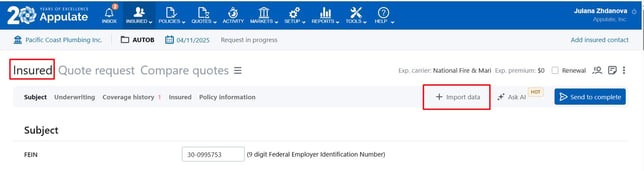](https://help.appulate.com/hubfs/Screenshot_126.jpg?hsLang=en)
[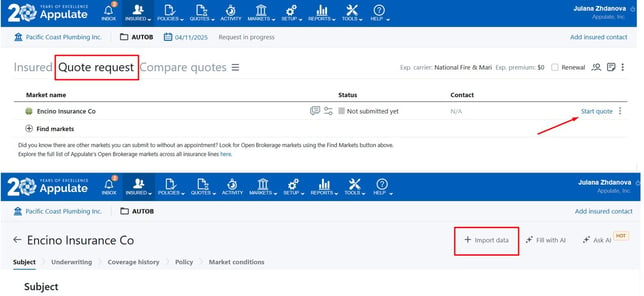](https://help.appulate.com/hubfs/Screenshot_127.jpg?hsLang=en)**
- **Forms page** - you can extract data from **PDFs**, **Excel, Word** and **txt files** by **Uploading** or dragging and dropping them onto the **Forms** page
**[](https://help.appulate.com/hubfs/Screenshot_121.jpg?hsLang=en)**
- **Documents page** - you can extract data from **PDFs**by **Uploading** them onto the **Documents** page, and clicking the **AI icon** or **Import data** in the three-dots menu
**[](https://help.appulate.com/hubfs/Screenshot_113.jpg?hsLang=en)**
The **AI icon** switches states dynamically. This is how it looks at the start 
and this is how it appears after the document is processed 
### User flows
Here are two user flow examples to guide you through the Forms AI feature. The first scenario illustrates the initial creating of a new insured profile using Forms AI-extracted documents. The second scenario shows how to enhance an existing insured profile with additional data via Forms AI.
Scenario 1.
Suppose you have multiple different insurance documents (ACORDs, Workers' compensation experience rating form, Loss experience report, etc.). You want to use the data from these documents to create an insured and proceed with them in Appulate.
Wherever you have your completed forms, go ahead and start there by printing them to Appulate Uplink printer option, click **Print**, enter your Appulate credentials and click **Send**.
[.gif?width=670&height=342&name=9-11-2026%20(17-07-06).gif)](https://help.appulate.com/hubfs/9-11-2026%20(17-07-06).gif?hsLang=en)
The system starts reading and extracting the data. At this point, you just sit back and wait. The system does everything on its own. Please note that larger documents with more pages require extra time for data recognition and extraction.
[.gif?width=670&height=344&name=9-11-2026%20(17-11-29).gif)](https://help.appulate.com/hubfs/9-11-2026%20(17-11-29).gif?hsLang=en)
On the **AI recognition results** screen, you will see a preview of the recognized data and can edit it. Click **Accept and continue**, select the Line of insurance, and click **Continue**. You will be automatically redirected to the new insured in Appulate, its profile will be populated with the information extracted from the AI-recognized documents.
[.gif?width=670&height=341&name=9-11-2026%20(17-16-25).gif)](https://help.appulate.com/hubfs/9-11-2026%20(17-16-25).gif?hsLang=en)
That’s pretty much it. You can now continue working on the insured in Appulate by adding any newly available data, or go ahead and submit a request for a quote.
Scenario 2.
Suppose you already have an insured's profile in Appulate, but it lacks sufficient data. And you also have an ACORD form with handwritten text, and you want to update the existing insured profile with the data from that ACORD form.
[.gif?width=670&height=343&name=9-11-2026%20(16-05-03).gif)](https://help.appulate.com/hubfs/9-11-2026%20(16-05-03).gif?hsLang=en)
In the insured profile you click **Import data**, select the file you want to add, and click **Open**. Please be patient, this takes a few seconds for the system to ingest and extract data.
[.gif?width=670&height=343&name=9-11-2026%20(16-39-09).gif)](https://help.appulate.com/hubfs/9-11-2026%20(16-39-09).gif?hsLang=en)
On the **AI recognition results** screen, you will show a preview of the recognized data. You click **Accept and continue** to stream the data directly into the insured's profile, automatically populating the fields with the recognized handwritten text.
.gif?width=670&height=342&name=9-11-2026%20(16-47-52).gif)
And that's it. Now the profile has been updated with the new details.
- [Getting started](https://help.appulate.com/en/knowledge/getting-started?hsLang=en#main-content)
- [How to start](https://help.appulate.com/en/knowledge/getting-started?hsLang=en#how-to-start)
- [For agencies](https://help.appulate.com/en/knowledge/getting-started?hsLang=en#for-agencies)
- [Submissions & Quotes](https://help.appulate.com/en/knowledge/getting-started?hsLang=en#submissions-quotes)
- [Users](https://help.appulate.com/en/knowledge/getting-started?hsLang=en#users)
- [Company settings](https://help.appulate.com/en/knowledge/getting-started?hsLang=en#company-settings)
- [Additional information](https://help.appulate.com/en/knowledge/getting-started?hsLang=en#additional-information)
- [Using Appulate](https://help.appulate.com/en/knowledge/using-appulate?hsLang=en#main-content)
- [Appulate functionality](https://help.appulate.com/en/knowledge/using-appulate?hsLang=en#appulate-functionality)
- [Main pages](https://help.appulate.com/en/knowledge/using-appulate?hsLang=en#main-pages)
- [Questionnaire & Forms](https://help.appulate.com/en/knowledge/using-appulate?hsLang=en#questionnaire-forms)
- [Submissions & policies](https://help.appulate.com/en/knowledge/using-appulate?hsLang=en#submissions-policies)
- [For MGAs and carriers](https://help.appulate.com/en/knowledge/using-appulate?hsLang=en#for-mgas-and-carriers)
- [For agents](https://help.appulate.com/en/knowledge/using-appulate?hsLang=en#for-agents)
- [Working with Insured](https://help.appulate.com/en/knowledge/using-appulate?hsLang=en#working-with-insured)
- [Email Notifications](https://help.appulate.com/en/knowledge/using-appulate?hsLang=en#email-notifications)
- [Notes and messages](https://help.appulate.com/en/knowledge/using-appulate?hsLang=en#notes-and-messages)
- [Tools & integrations](https://help.appulate.com/en/knowledge/tools-integrations?hsLang=en#main-content)
- [Uplink](https://help.appulate.com/en/knowledge/tools-integrations?hsLang=en#uplink)
- [Weblink](https://help.appulate.com/en/knowledge/tools-integrations?hsLang=en#weblink)
- [AMS](https://help.appulate.com/en/knowledge/tools-integrations?hsLang=en#ams)
- [FAQ & troubleshooting](https://help.appulate.com/en/knowledge/faq-troubleshooting?hsLang=en#main-content)
- [FAQ](https://help.appulate.com/en/knowledge/faq-troubleshooting?hsLang=en#faq)
- [New features](https://help.appulate.com/en/knowledge/new-features?hsLang=en)
- [AppulateConnect](https://help.appulate.com/en/knowledge/appulateconnect?hsLang=en)
- [Appulate](https://appulate.com/?browse)
[](https://blog.appulate.com/?hsLang=en)
Copyright © 2026, Appulate Inc.