![appulatelogo-1.svg]](https://help.appulate.com/hubfs/appulatelogo-1.svg)
This short video will walk you through the process of selecting markets and adding market login credentials.
This article provides information on adding markets and market login credentials in Appulate.
Overview
Markets (MGAs and carriers) can be available (Markets menu > Available) or selected (Markets menu > Selected).
To work with a market in Appulate, you need to add it to your company's selected markets. You also need to provide market login credentials.
Adding markets
You can add markets:
-
on the Available Markets page;
-
in the Find markets dialog on the Quote request page;
- in the Discover recommended markets dialog on the Quote request page.
Available Markets page
Go to Markets > Available and type the market you want to add in the Name search field (preferably markets your company is appointed with).
Once you've found a market to add, click + in the Select column.
The selected markets will then appear in the My markets section of the Find markets dialog every time you create a quote request.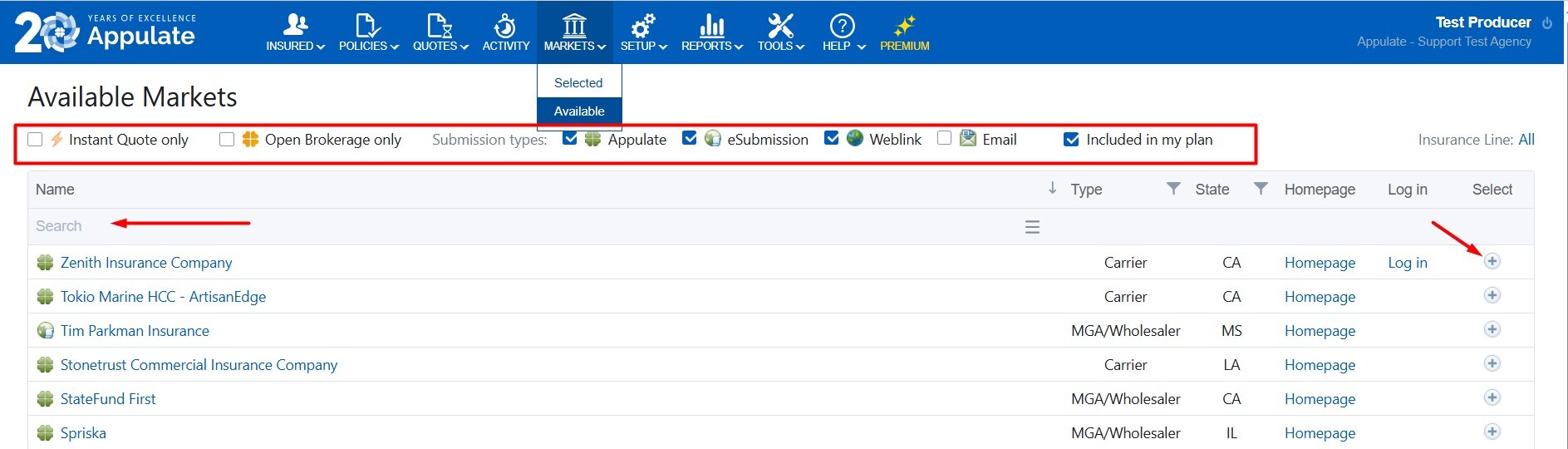
You can play with the various filters to narrow markets down from a list of available options. If you're unsure what the filters are, hover your mouse over a text to receive a hint on what those are.
-
Instant Quote only - if selected, you will show only the markets, that provide real-time quotes
-
Open Brokerage only - if selected, you will show only the markets you can get a quote from without a prior appointment
-
Submission types - if selected, you will show only the markets, that support a particular type and level of integration with the Appulate platform
- Included in my plan - if selected, you will show only the markets you can submit to, based on the tier you're using - the Standard or the Premium.
Find markets dialog
1. Create a new quote request or open an existing one, and click the Find markets button on the Quote request page.
Note: If you're working under a market's URL, the Find markets button will be hidden. You can only work with this market.
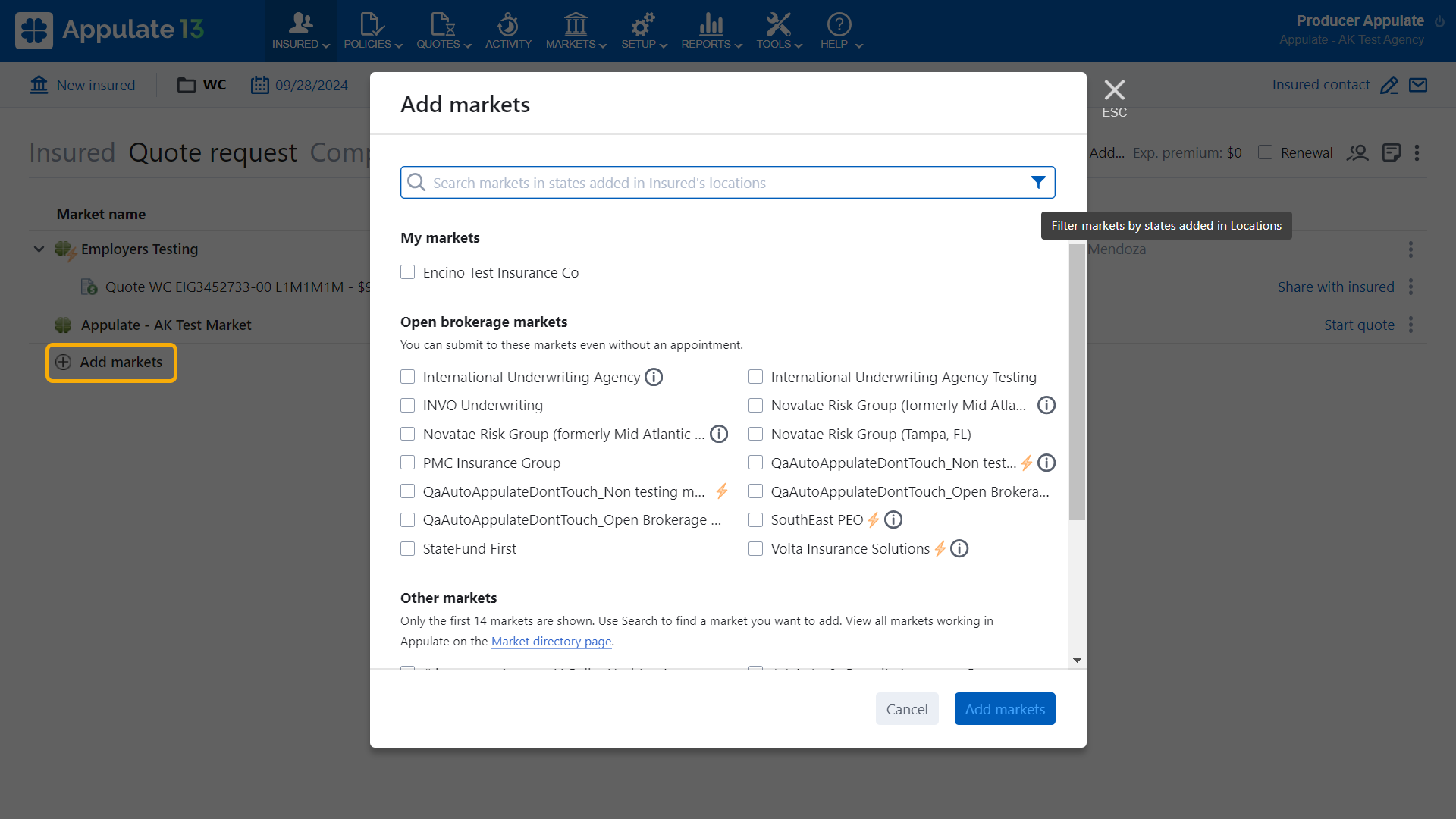
2. In the dialog, the markets are usually divided in three groups:
- Open brokerage markets;
- My markets - markets you have already selected;
- Other markets - other available markets that you can select.
Note: In Package lines, a market will only be shown in the Find markets dialog if it supports at least one of your selected coverages. This applies to all sections of the dialog.
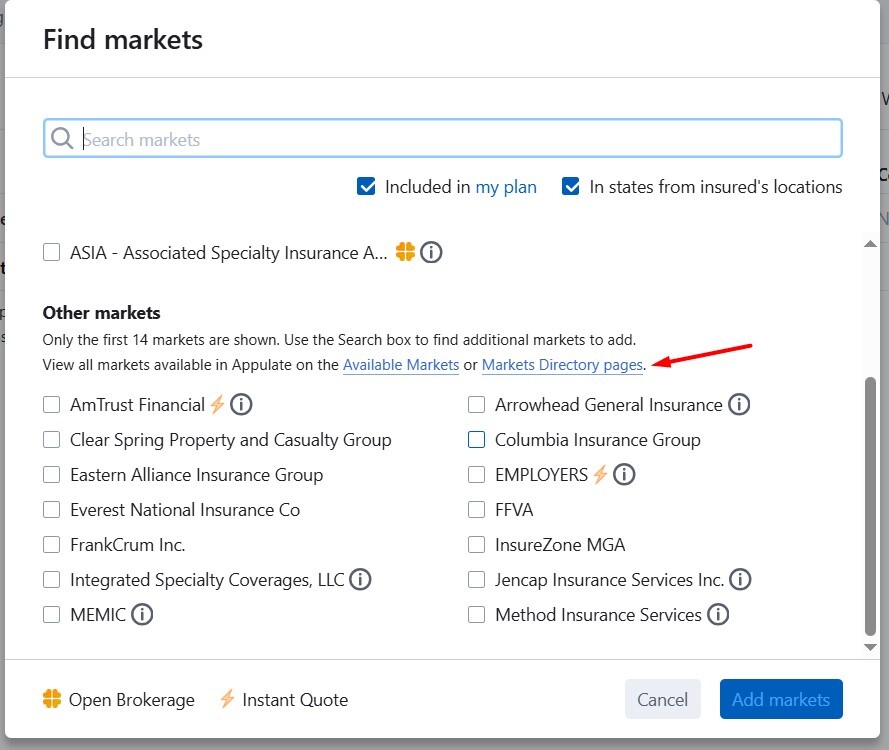
Tip: You can view all the markets that support particular insurance lines by clicking the Market directory page link in the Other markets section's description.
.gif?hsLang=en)
You can search for markets by typing names in the search field.
You'll show Included in my plan option. If selected, the system will show the markets you can submit to, based on the tier you're using - the Standard or the Premium.
If you've added at least one state in Locations for your Insured, you'll show the filter option In states from insured's locations you can check or un-check, so to get the system hide the markets that do not write in this particular state or show all markets regardless of the state.
If a market has the instant quote icon , it supports automatic quote generation for the insurance line you have chosen.
If a market has the brochure icon  , you can view its brochure for this insurance line by clicking the icon.
If a market has the open brokerage icon , you can request a quote without an appointment.
Note: Open brokerage markets are only visible to agency users.
The Other markets section will be displayed if your company has Show available markets for every request for a quote option selected in your company Settings page. However, you'll not show the Other markets section if all markets were selected, even though the setting is checked.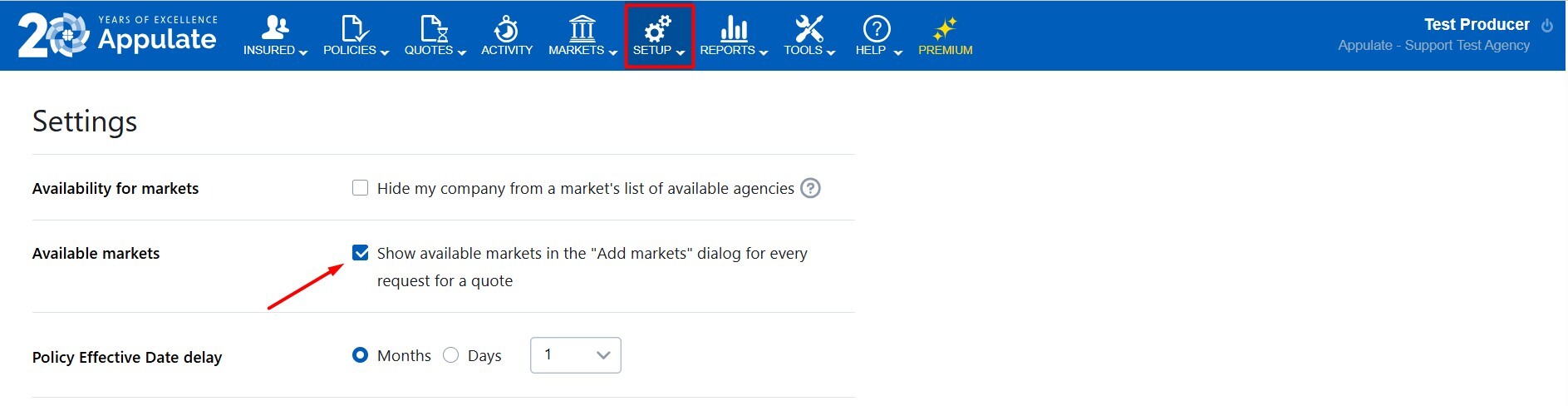
Available markets will not show for regular (non-admin) users of an agency, if Allow non-admin users to select and unselect markets is not selected on your agency's Settings page.
3. Select as many markets as you want and click the Add markets button at the bottom of the dialog.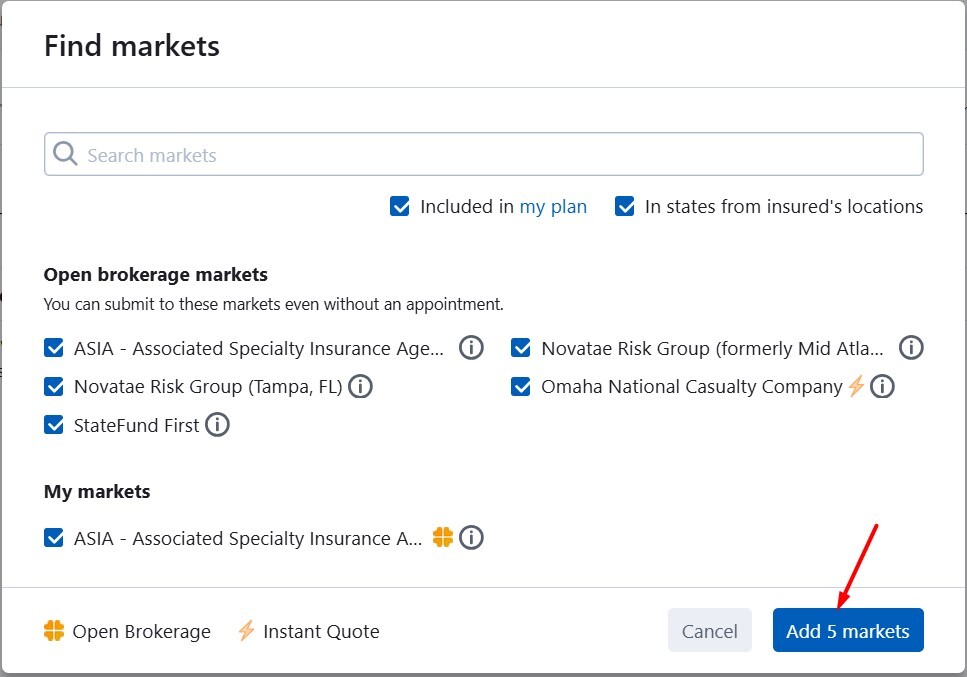
4. The added markets will appear on the Quote request page. They will also be on your Selected Markets page.
Adding and removing markets is logged in the Activity log.
Discover recommended markets dialog
This feature is to narrow markets down from a list of available options.Clicking Discover recommended markets, you'll show markets recommended by the system, based on the governing class code and analysis of submissions across all agencies in Appulate.
Make sure you enter a valid governing class code on the Insured tab, first, so to be able to see recommendations. .
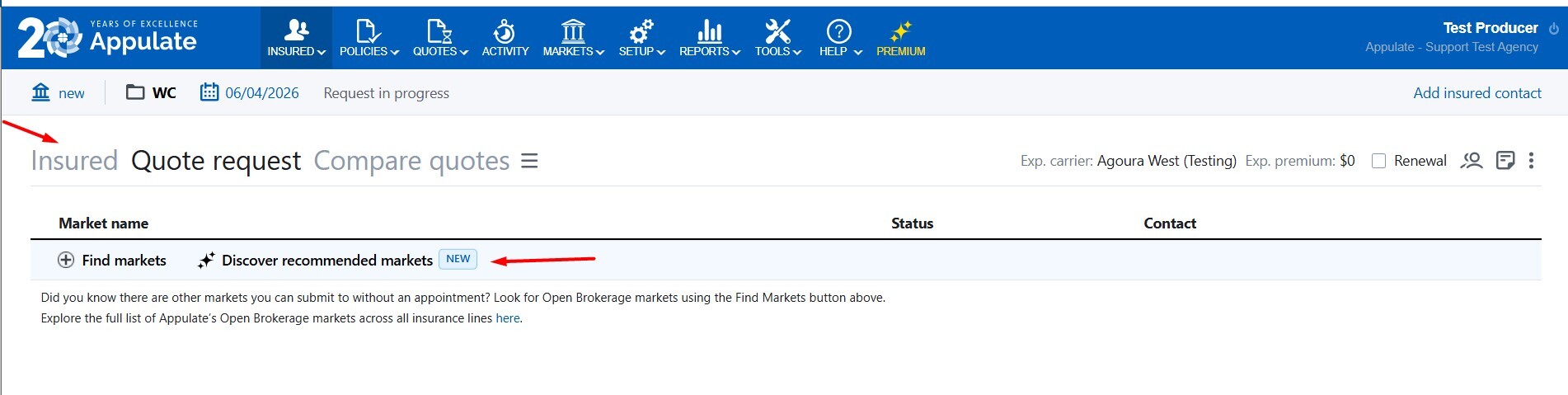
Note: Treat them as suggestions, not mandatory instructions, and consider submitting to your markets, even if they are not in the recommended list.
Adding market logins
You can enter or update your market specific login and password in any of the following ways:
1. Go to your Appulate profile by selecting Setup > My profile. Additionally, you can click your name in the top-right corner of any Appulate page to get redirected to My profile page.
Open Authentication Info tab. Within this section you'll see the list of markets that you previously added to Markets > Selected. These are the markets that require login details to submit quote request. Enter market specific credentials there, then press Enter or Save. 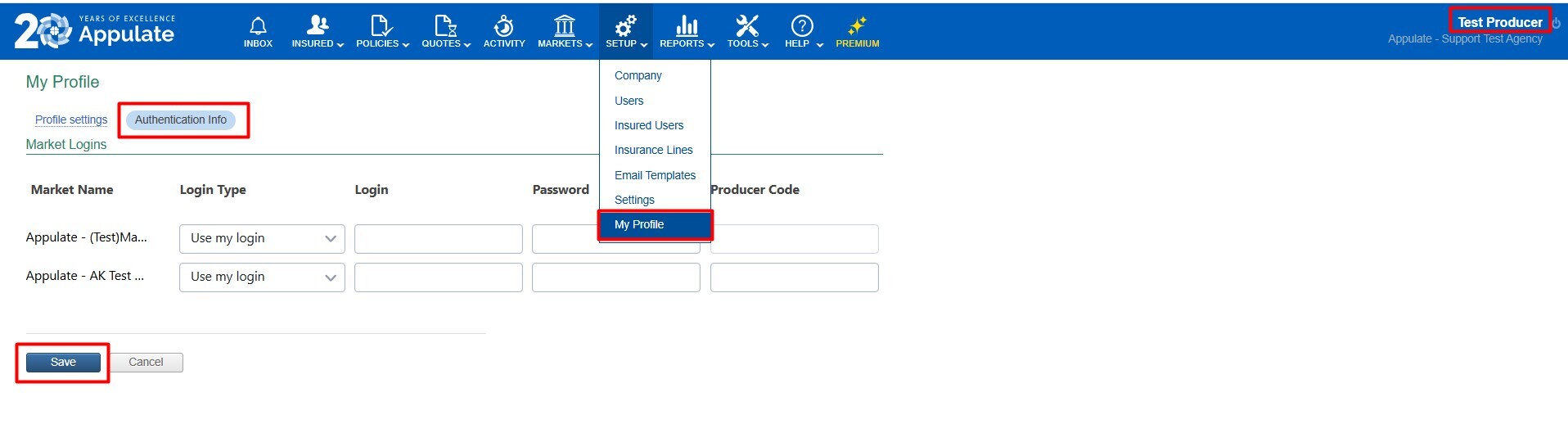
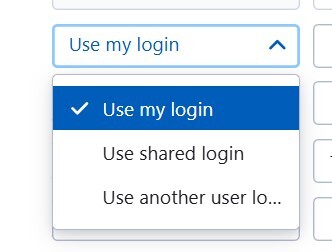
Note: You can specify three types of login details. If your agency has personalized login credentials, use the option Use my login. If your agency has shared credentials, use the option Use shared login. If you need to use another user personalized login credentials, select Use another user login option.
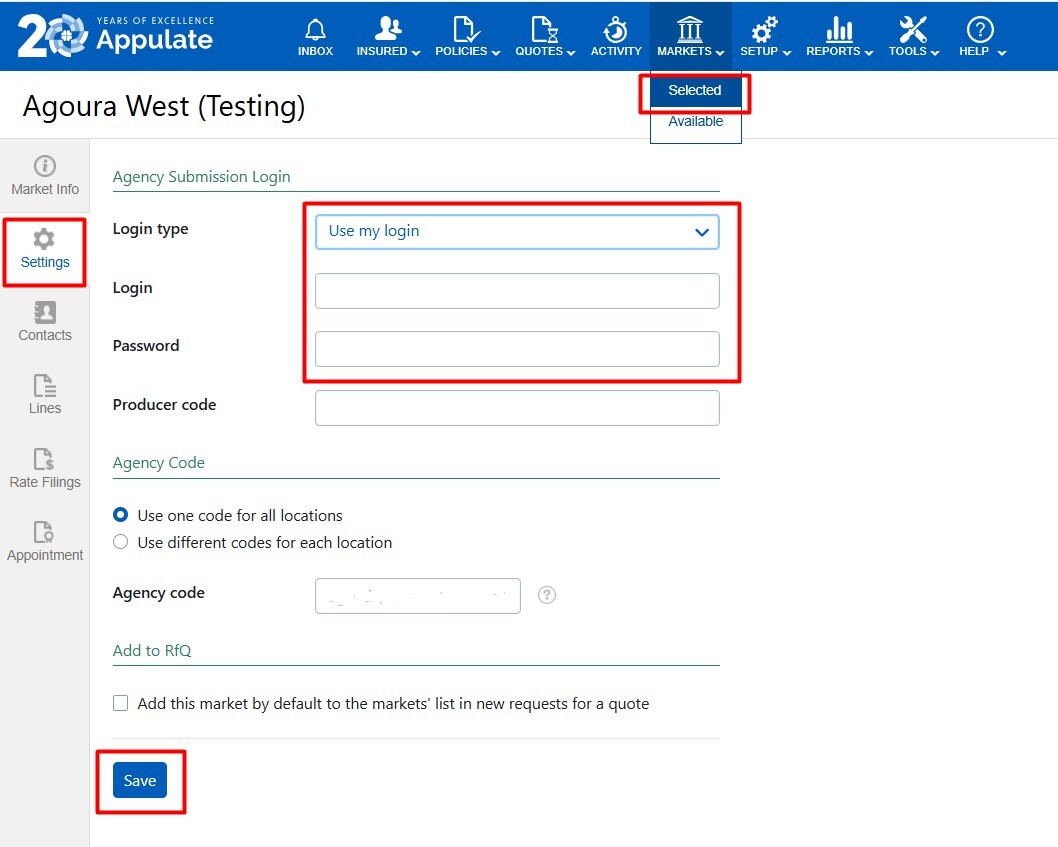
2. Select the button Markets within a toolbar and click the page Selected, click the market you want to enter your credentials for, and open its Settings tab on the left.
When there, enter the login details under Agency Submission Login and click Save.
3. Create a new quote request or open an existing one and add a market.
You'll find Submission credentials section in the Market Smart Q&A. Just click on Start quote, and open Submission credentials section to enter the market's login details. .gif?hsLang=en)
Plus, you can click Options button in the market's menu bar on the right-hand side, enter the credentials in the Options dialog and hit Save.
.gif?hsLang=en)
Adding User ID and Primary producer ID
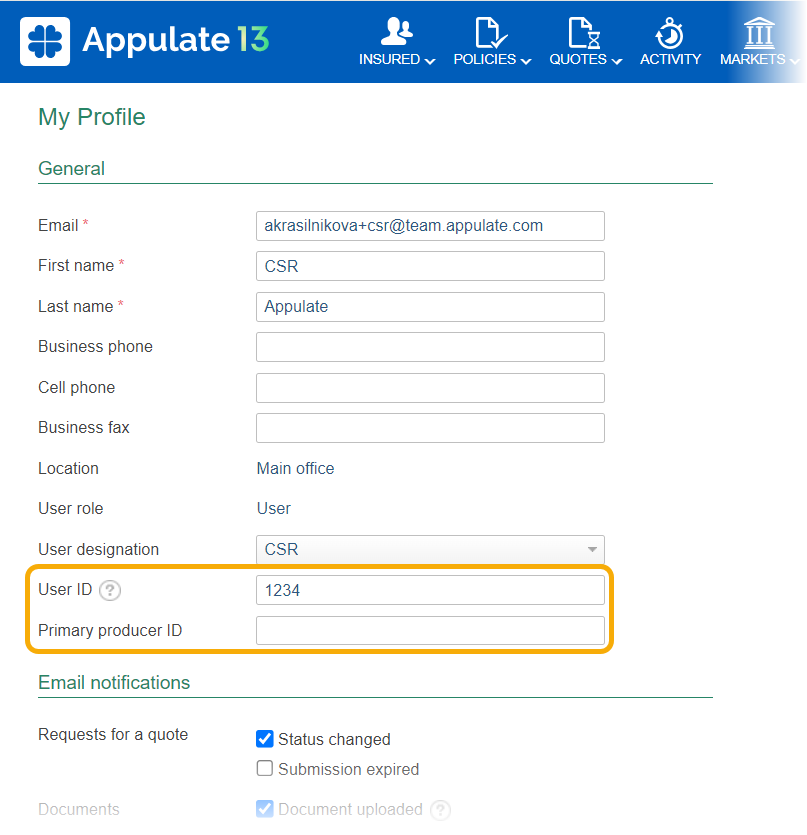
You can add your User ID and Primary producer ID on the My Profile page (Setup > My Profile, or click your name in the top-right corner). Just type the ID in the field and click Enter or Save at the bottom of the page.
The Primary producer ID field is available only to CSR users and only if User ID is not empty.
The User ID maximum length is 10 characters. The Primary producer ID maximum length is 35 characters.